AI Messaging Scheduler
Timeline
2026, Discovery
2026, Design
2026, Build
My Role
Designed an AI-powered scheduling and messaging app that helps users plan routines, draft and organize messages, schedule communications, and automate follow-ups—all in one streamlined experience.
Project Purpose and Goal
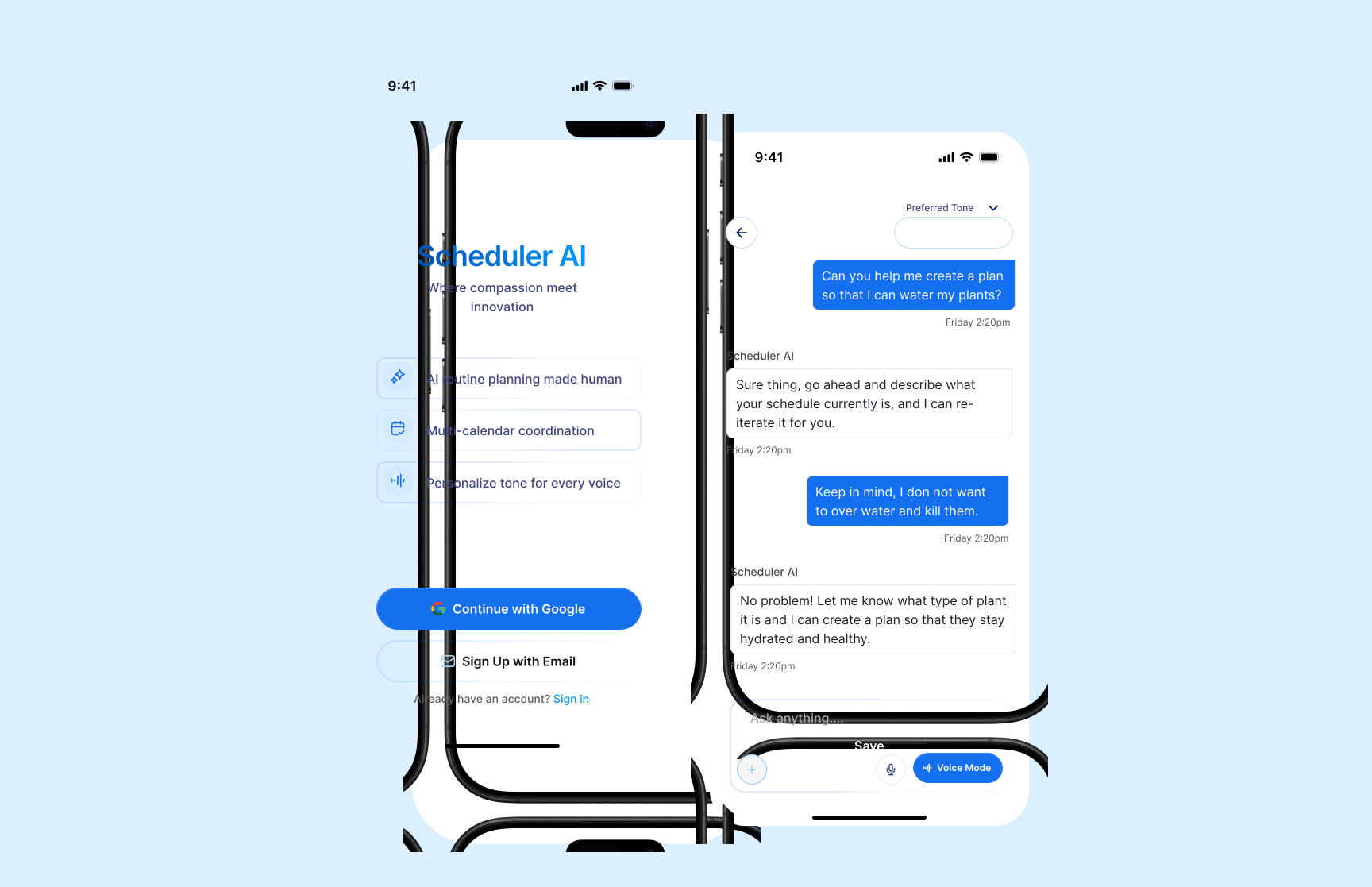
The goal of this project was to design a clear, intuitive messaging experience where users can chat with an AI assistant, provide relevant documents and information, and use that context to schedule and plan important events, meetings, and communications. I wanted to simplify the planning process by bringing AI assistance, messaging, and scheduling into one seamless workflow.
Prototype Flow Explanation
The prototype maps a complete path from first open to a finished schedule. Users start on the Scheduler AI landing screen, continue with Google or email, then land on a help-centered home with quick actions like Start Planning. Choosing Start Planning opens a chat with the AI, where they describe what they need—such as a morning routine or a plant-watering plan. The assistant asks clarifying questions, then generates downloadable schedule assets the user can review and refine in the same conversation.
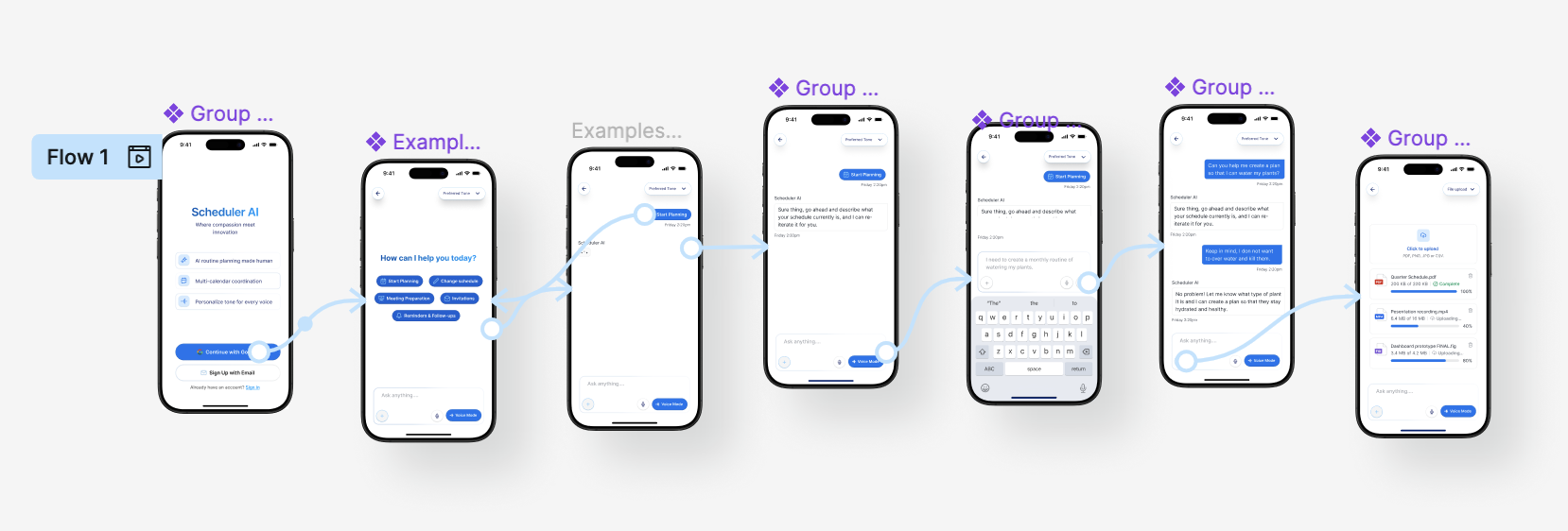
Entering Text
Once Start Planning is selected, the conversation becomes the main workspace. Users can tap a quick action or type freely into the Ask anything field—describing something like a monthly plant-watering routine—while Scheduler AI responds in chat and keeps the preferred tone available at the top. The keyboard and send controls stay anchored at the bottom so refining a request feels as natural as texting.
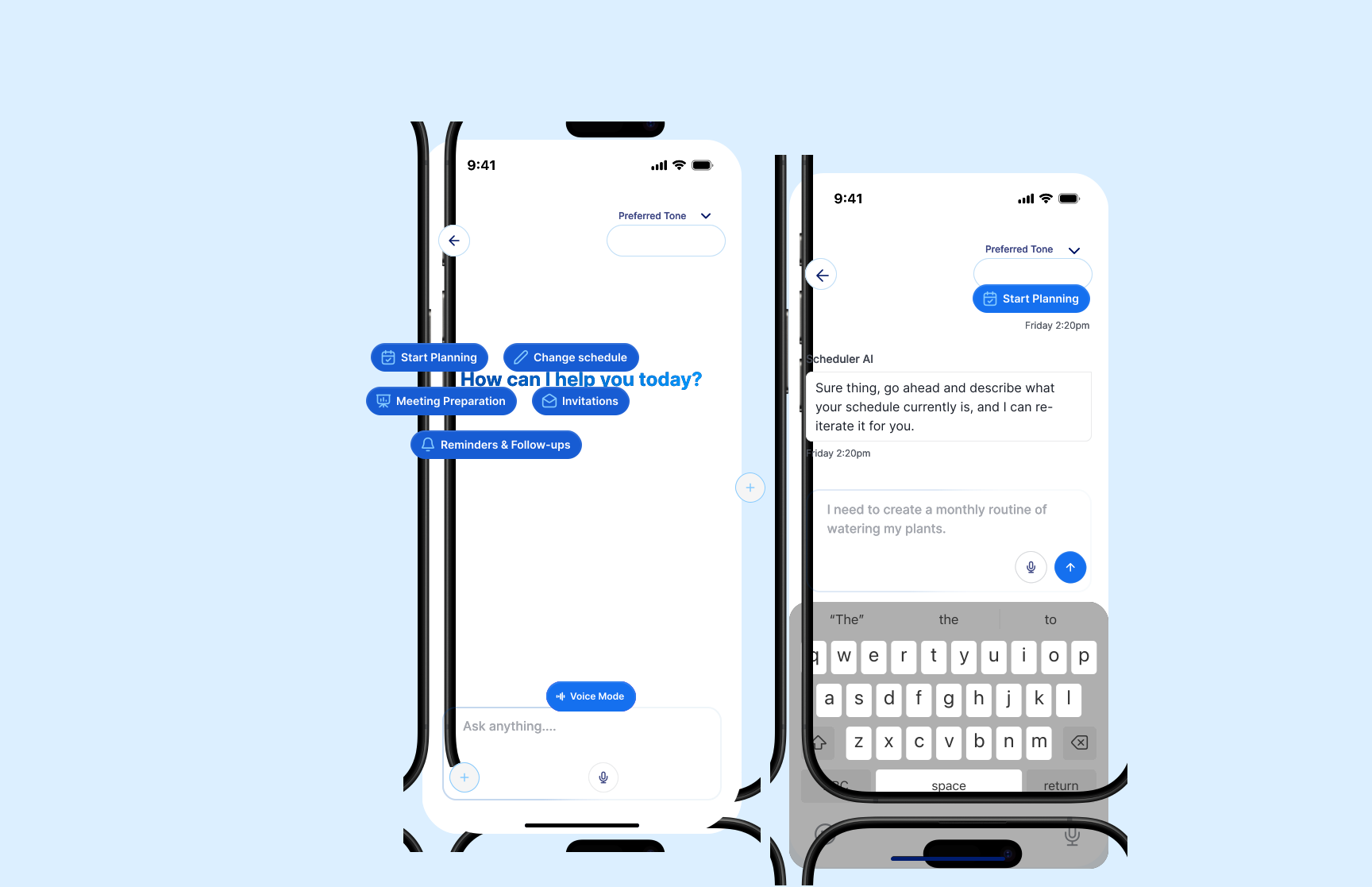
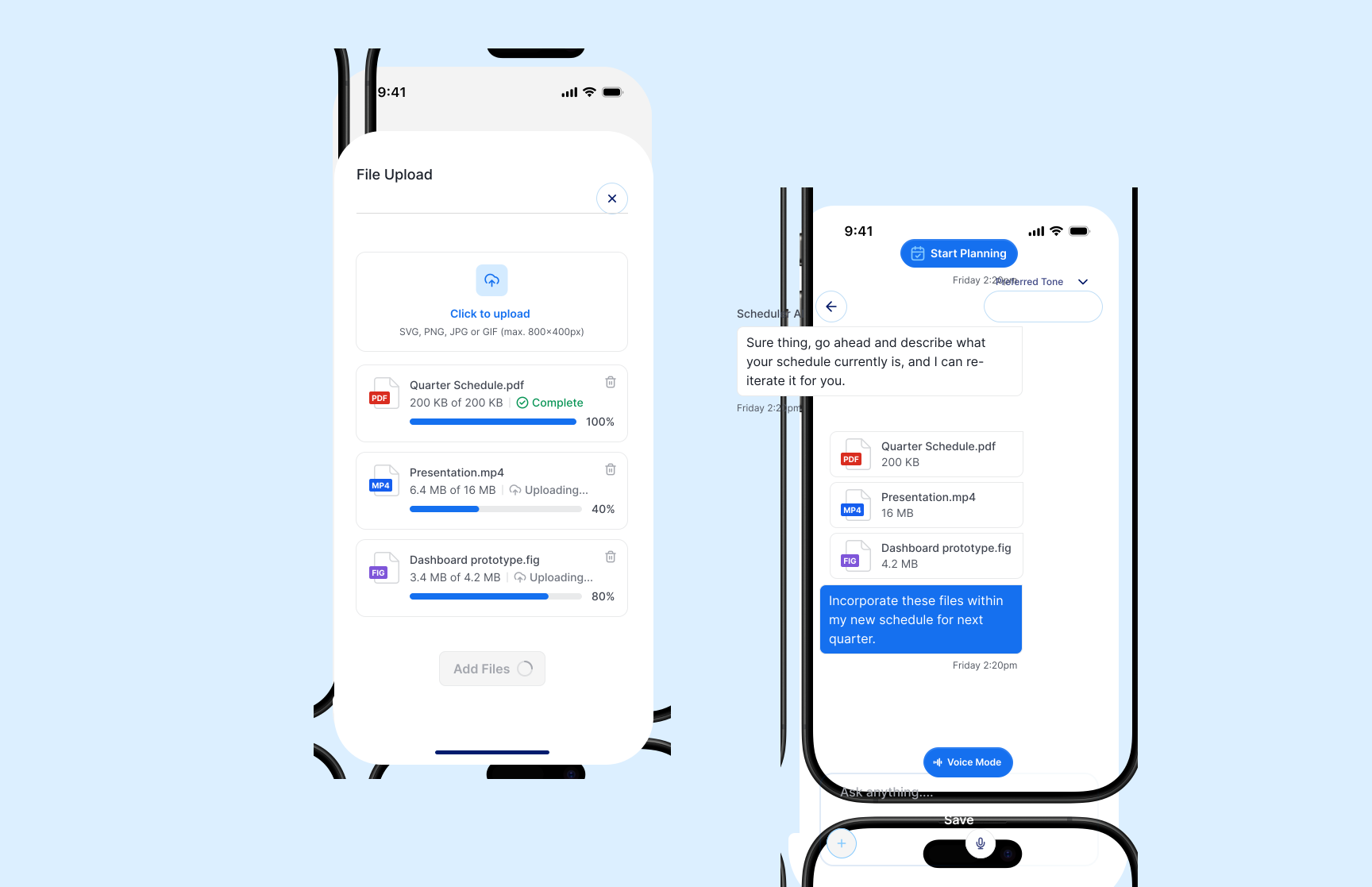
File Upload
Users can also bring existing materials into the conversation through a dedicated File Upload flow. From the chat, they open an upload sheet to add PDFs, videos, or design files, watch progress states as each file finishes, then return to the thread where attachments appear inline so Scheduler AI can incorporate them into the next schedule draft.
Web Stack Explanation
I designed the experience in Figma using the Untitled UI design system, mapping user journeys and creating wireframes to define the core messaging and scheduling workflows. I then developed high-fidelity designs and interactive prototypes to refine key interactions and create a consistent, intuitive experience across the product.
Lessons Learned
This project reinforced how important it is to keep conversational AI experiences simple and guided. I learned that quick actions, clear tone controls, and structured file-upload states help users feel confident when planning with an assistant—especially when messaging and scheduling live in the same flow. Designing the journeys in Figma with Untitled UI also showed me how early wireframes and interactive prototypes make it easier to refine complex interactions before they become hard to change.
More work
A few other projects worth a look.